
Template Ads
A template ad is a pre-built creative design — HTML, CSS and JavaScript written by the platform — where you fill in the copy, colors and images and ADBNK renders the finished ad for you. You get an animated, interactive creative without writing any code or hiring a designer.
Start from Creatives → New creative → Rich-media template. The instances you've made are listed under the Templates tab of the Creatives page.
Template ads vs. other creatives
| You supply | Rendered by | Sizes | |
|---|---|---|---|
| Normal creative | The finished asset (image, video, or your own HTML) | Served as-is | One creative per size |
| Template ad | Only the variables (headline, price, image, color…) | The platform, from the template's HTML/CSS/JS | The sizes the template declares |
| Responsive ad | A pool of assets (logo, images, headlines) | The platform, freshly at each zone's size | Adapts to any size |
The practical difference: a template ad is a specific design at a specific size that you configure once and reuse. A responsive ad has no fixed design — the platform assembles one on the fly to fit whatever zone it lands in. Reach for a template when you want a particular look (a countdown card, an app-install banner); reach for a responsive ad when you want maximum reach and don't care about the exact layout.
Flow
Step 1: Pick a template
Templates are grouped into categories. Each card shows a preview image, the sizes the template supports, and a short description.
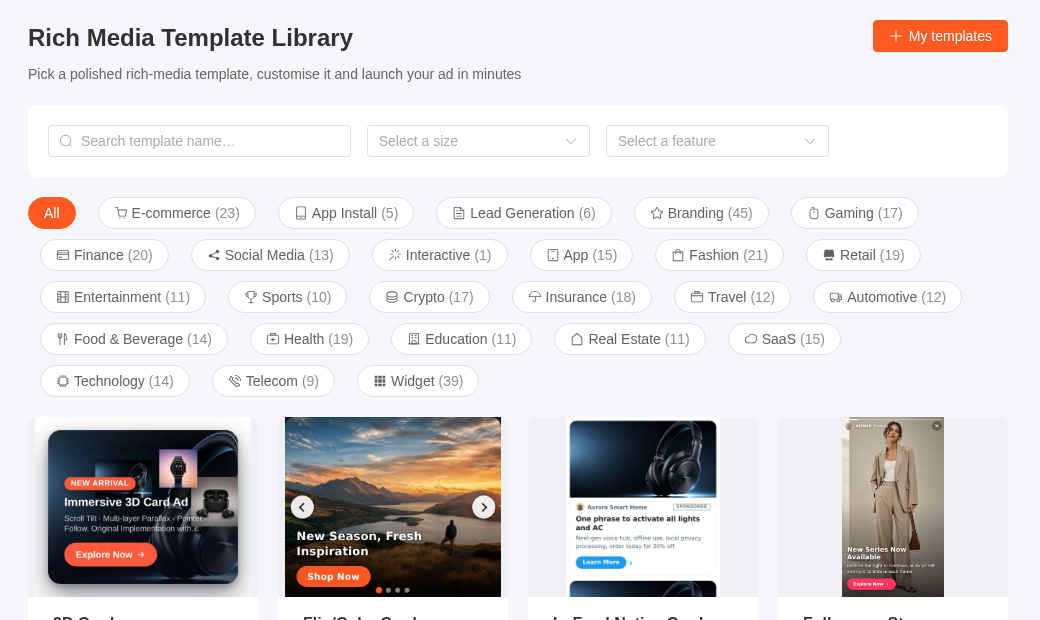
A template declares which sizes it supports. Pick the size you need at the same time you pick the design — the instance you create is bound to that width and height.
Step 2: Fill in the fields
Every template defines its own set of fields. What you see is driven by the template, so no two templates ask for exactly the same things, but the field types are a fixed set:
| Field type | What you enter |
|---|---|
text / textarea | Copy — headline, description, price, CTA. Often has a character limit |
number | A numeric value, sometimes with a min/max |
select | One option from a list the template defines |
color | A color, usually the theme color of the design |
image | A single image, picked from the media library or uploaded. Templates may require a specific aspect ratio |
image_array | Several images — carousels and galleries use this. Usually has a min/max count |
datetime | A point in time. Countdown templates use this as the deadline |
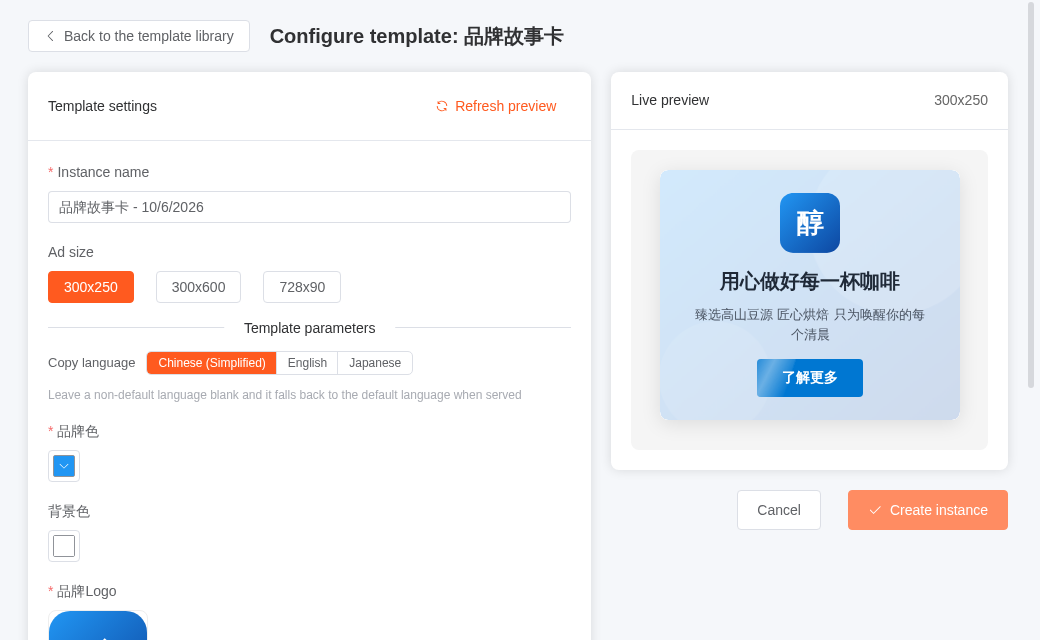
Required fields are enforced on save. Some fields only appear once another field is set to a particular value, so the form can change as you fill it in.
Anything you leave blank falls back to the template's own default, so a half-filled template still renders — it just renders the designer's placeholder rather than your content.
Preview before you save
The preview renders the real template with the values you've typed, at the size you selected. Use it — a headline that fits in the input box does not necessarily fit in the design.
Step 3: Multi-language copy
Any text field in a template can hold one value per language instead of a single string. The form has a language switcher: pick a language, type the copy for it, and the field quietly becomes a per-language set.
At serve time ADBNK picks the copy matching the viewer's locale. If there's no exact match it falls back, in order:
- Exact locale (
zh-CN) - The same base language (
zh-CN→zh, or any otherzh-*variant) - The value marked as the default
- Failing all that, the first non-empty value
So you can translate only the languages that matter and let the rest fall back, rather than translating every field into every language.
Character limits apply per language
A template's length limit is checked against each language separately. German and Japanese renderings of the same headline have very different lengths — if one language overflows the limit, saving fails for that language, not silently for the ad.
If you don't touch the language switcher, the field stays a plain single-language string and behaves exactly as before. Nothing about multi-language is mandatory.
Step 4: Save, review, serve
Saving creates a template instance — your filled-in copy of the template, at one size. The instance is what gets reviewed and served; the template itself is shared platform-wide and never changes because of you.
An instance serves only when both are true:
- The instance is approved — new instances start as pending review.
- The instance is attached to an ad as a creative. The console can create that creative for you when you save.
Your instances are listed under the Templates tab of the Creatives page, where you can preview, copy, edit or delete them.
Editing an approved instance sends it back to review
Changing an instance's content — any field value, or its size — resets it to pending review, and it stops serving until it's approved again. Renaming it does not.
Related reading
- Media Library — where the images you drop into templates come from
- AI Creatives — generate the images instead of sourcing them
- Responsive Ads — the other way to avoid making one creative per size
- Create a Campaign